


Yes, you can connect Bluetooth headphones to a PlayStation 5 without a physical adapter, but not through the console’s native Bluetooth menu. The only software-based method is using Sony’s official PS Remote Play application. This involves streaming your PS5’s audio to a compatible secondary device—like a smartphone, tablet, or computer—and then pairing your Bluetooth headphones to that device. While this bypasses the need for hardware like a USB Bluetooth transmitter, it introduces network-dependent audio latency and compression, making it more suitable for casual gaming than competitive play.
Table of Contents
- 1 Understanding the PS5’s Audio Ecosystem and Bluetooth Architecture
- 2 Method 1: The PS Remote Play Workaround – A Deep Dive
- 3 Contextualizing the Alternative: The Hardware Adapter Pathway
- 4 Advanced Optimization: Maximizing Your Chosen Method’s Performance
- 5 Comprehensive FAQ: Addressing Semantic Search Intent
- 5.1 Can you use Bluetooth headphones on PS5 directly via Bluetooth settings?
- 5.2 What is the absolute lowest-latency wireless method for PS5?
- 5.3 Does using AirPods with PS5 via Remote Play support features like spatial audio or transparency mode?
- 5.4 Are there any hidden Bluetooth audio settings or developer menus on the PS5?
- 5.5 How does audio quality via Remote Play compare to a direct wired connection?
- 5.6 Could a future PS5 system software update enable native Bluetooth audio support?
- 6 Making an Informed Decision for Your Gaming Audio
Understanding the PS5’s Audio Ecosystem and Bluetooth Architecture
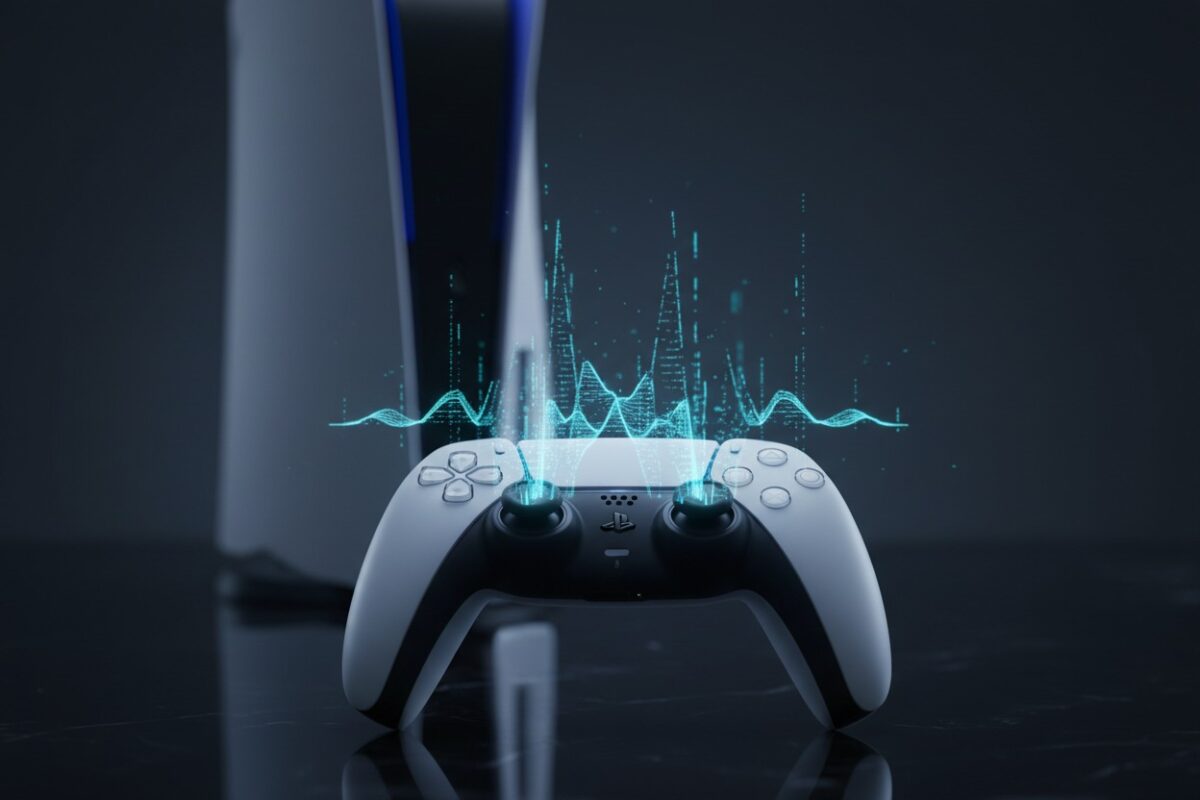
The Sony PlayStation 5 (Model Series: CFI-2000) represents a generational leap in console design, integrating advanced hardware like the Custom AMD Zen 2 CPU and RDNA 2 GPU. Yet, its approach to wireless audio connectivity remains a deliberate and often misunderstood choice. To optimize the user experience for competitive and immersive gameplay, Sony engineers made a critical design decision: restricting the console’s integrated Bluetooth 5.1 radio.
This restriction isn’t a hardware flaw but a software-level prioritization. The PS5’s System Software (currently based on Orbis OS) reserves the Bluetooth stack for critical, low-latency communication with primary input devices. This ensures absolute stability for the DualSense wireless controller—a device that utilizes Bluetooth for its innovative haptic feedback and adaptive trigger data streams—and for first-party audio peripherals.
The Technical and Commercial Rationale Behind Sony’s Restrictions
- Latency Minimization: Standard Bluetooth audio codecs like SBC (Subband Coding) and even AAC (Advanced Audio Coding) introduce buffering delays, typically ranging from 100-300 milliseconds. In fast-paced action games, first-person shooters (FPS), and rhythm games, this audio lag creates a disconnect between on-screen action and sound, degrading gameplay.
- Bandwidth Integrity: The DualSense controller transmits a constant, rich stream of data. Prioritizing its connection prevents potential interference or dropout, which is crucial for maintaining the integrity of gameplay mechanics in titles like Astro’s Playroom or Returnal.
- Ecosystem Synergy: Sony promotes its tailored audio ecosystem, centered on the Tempest 3D AudioTech engine. Devices like the Pulse 3D wireless headset and Inzone H9 headset use proprietary, low-latency wireless protocols (not standard Bluetooth) via their included USB-C dongles, offering a seamless, optimized experience that leverages the PS5’s full audio capabilities.
Method 1: The PS Remote Play Workaround – A Deep Dive
The PS Remote Play application is Sony’s official streaming solution, designed to mirror your PS5 interface on other screens. It also serves as the primary conduit for connecting standard Bluetooth headphones—like Apple AirPods (Pro/Max), Bose QuietComfort Ultra, or Sony WH-1000XM5—without additional hardware.
Pre-Configuration: Optimizing Your PS5 and Network
On Your PlayStation 5 Console:
- Navigate to Settings > System > Remote Play and enable the feature.
- Proceed to Settings > System > Power Saving > Features Available in Rest Mode. Activate both “Stay Connected to the Internet” and “Enable Turning on PS5 from Network.” This allows for wake-on-LAN functionality.
- For the best streaming quality, use a wired Ethernet (CAT-6 recommended) connection from your PS5 to your Wi-Fi 6 router. This drastically reduces network jitter, a key factor in audio-video sync.
On Your Streaming Device:
- Mobile: Install the PS Remote Play app from the Apple App Store (iOS/iPadOS) or Google Play Store (Android).
- Computer: Download the client for Windows 10/11 or macOS from the official PlayStation website.
- Ensure this device supports modern Bluetooth versions (4.2 or higher) for stable headphone connectivity.
Step-by-Step Connection Protocol
- Pair Headphones to Secondary Device: Activate pairing mode on your Bluetooth headphones. On your smartphone or computer, complete the standard Bluetooth pairing process in the system settings. This establishes a direct, stable link between your headphones and the streaming device.
- Establish Remote Play Session: Launch the PS Remote Play app and log in with your PlayStation Network (PSN) account credentials. The app will locate your PS5 on the local network. For external access, ensure your router’s NAT type is favorable (Type 2 or 1).
- Route Audio: Upon successful connection, your PS5’s display is mirrored. The console’s audio output is now redirected through the streaming app to your device’s audio output bus, which is occupied by your paired Bluetooth headphones.
- Optimize Stream Settings: Within the Remote Play app’s settings, adjust the Video Quality for Remote Play. For a balance between visual fidelity and latency, 720p or 1080p at “Standard” frame rate is often optimal. “High” frame rate can increase network strain.
Technical Analysis: Advantages vs. Critical Drawbacks
| Advantages | Disadvantages & Technical Limitations |
|---|---|
| Cost-Effective: Utilizes existing devices; no Bluetooth audio transmitter purchase required. | Compound Latency: Introduces both network encoding/decoding delay (from Remote Play) and Bluetooth audio latency. Total delay can exceed 200ms, making it unsuitable for competitive gaming. |
| Universal Compatibility: Works with any Bluetooth headphones, earbuds, or gaming headsets that pair with your secondary device. | Audio Compression: The game audio is compressed for streaming (using codecs like OPUS), then potentially re-compressed by your headphone’s Bluetooth codec, degrading audio fidelity. |
| Flexible Setup: Allows you to play in a different room from your console, provided your Wi-Fi network is robust. | Device Resource Lock: The secondary device is dedicated to the stream. You cannot easily multitask on it. |
| Network Dependency: Performance is tied to Wi-Fi signal strength, router quality, and network congestion. 5GHz bands are essential. |
Contextualizing the Alternative: The Hardware Adapter Pathway
A comprehensive discussion of connecting headphones “without an adapter” necessitates a clear understanding of the adapter-based alternative. This comparison is vital for search intent satisfaction, as users weigh their options.
A USB Bluetooth audio transmitter (e.g., Creative BT-W3, Avantree DG60P, TaoTronics TT-BA07) plugs into the PS5’s SuperSpeed USB port. It functions as an external audio output device, bypassing the console’s internal restrictions. These adapters often support advanced, low-latency codecs:
- aptX Low Latency (aptX LL): Aims for a sub-40ms delay, nearly imperceptible for most gaming.
- aptX Adaptive: Dynamically adjusts bitrate and latency based on content and interference.
- LC3: The new standard from the Bluetooth Special Interest Group (SIG) for LE Audio, promising better quality and lower latency (though not yet widely adopted).
This method provides a more direct audio path than Remote Play, resulting in superior sync and quality, but it constitutes the “adapter” this guide seeks to avoid.
Advanced Optimization: Maximizing Your Chosen Method’s Performance

For Remote Play Users:
- Network Segmentation: If possible, create a dedicated 5GHz Wi-Fi SSID for your gaming and streaming devices to reduce interference from smart home gadgets.
- Device Priority: Use your router’s Quality of Service (QoS) settings to prioritize traffic to/from your PS5 and streaming device.
- Wired Backhaul: For multi-node mesh network systems, ensure the nodes are connected via Ethernet, not wirelessly.
Universal Audio Enhancements:
- Tempest 3D AudioTech: This object-based spatial audio engine works with any stereo audio output. In PS5 Settings > Sound > Audio Output, enable “3D Audio” and run the profile optimizer for your specific headphones to enhance positional awareness in supported games like Marvel’s Spider-Man 2 or Horizon Forbidden West.
- In-Game Audio Settings: Many titles offer separate sliders for chat audio, game audio, and dynamic range compression (often called “Midnight Mode”). Adjust these to hear crucial gameplay cues clearly.
Comprehensive FAQ: Addressing Semantic Search Intent
Can you use Bluetooth headphones on PS5 directly via Bluetooth settings?
What is the absolute lowest-latency wireless method for PS5?
Does using AirPods with PS5 via Remote Play support features like spatial audio or transparency mode?
How does audio quality via Remote Play compare to a direct wired connection?
Could a future PS5 system software update enable native Bluetooth audio support?
Making an Informed Decision for Your Gaming Audio
Successfully learning how to connect Bluetooth headphones to PS5 without an adapter requires accepting a fundamental trade-off: convenience versus performance. The PS Remote Play method is a clever software workaround that provides a wireless audio solution using the devices you already own, perfectly serving the needs of a casual gamer enjoying a narrative-driven role-playing game (RPG) or adventure game in a different room.
However, for genres where timing is critical—fighting games, competitive shooters, or rhythm games—the compounded latency of this method is a severe handicap. In these scenarios, the investment in a dedicated low-latency Bluetooth USB adapter or the use of a simple wired headset becomes not just preferable but necessary.
Ultimately, your choice hinges on your gaming genre preferences, tolerance for audio delay, and existing hardware ecosystem. By understanding the technical underpinnings of the PS5’s design, the functionality of Remote Play, and the performance characteristics of each option, you can strategically select the audio setup that delivers the optimal balance for your immersive PlayStation 5 experience.