
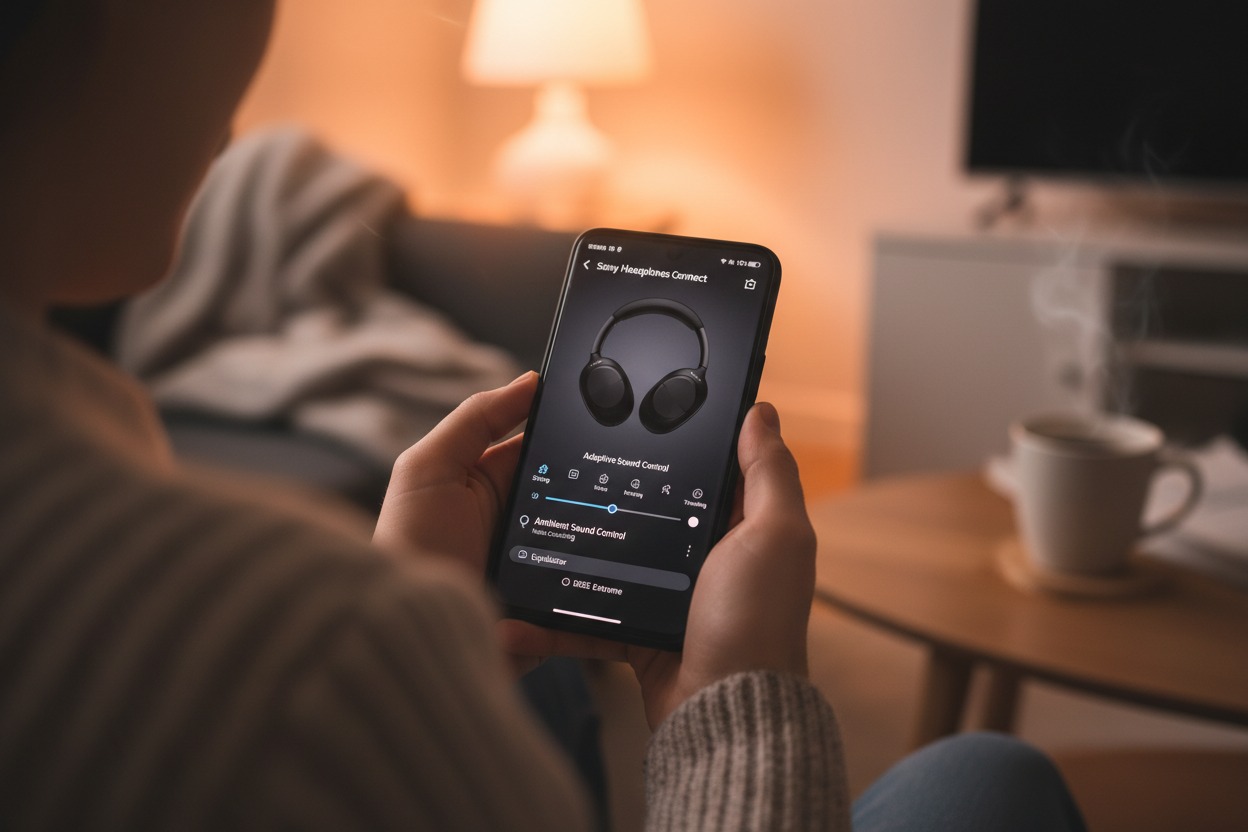

To pair Sony headphones, first ensure they are charged. Enter Bluetooth pairing mode—typically by pressing and holding the power button for ~7 seconds on over-ear models like the WH-1000XM4, or the case button for WF-series earbuds. Then, on your device (iPhone, Android, Windows PC, or Mac), navigate to Bluetooth settings and select your headphone model from the available devices list. For optimal performance, download the Sony Headphones Connect app to manage connections, enable advanced features like Multipoint pairing, and customize your audio experience. This universal method applies to most modern Sony Bluetooth headphones and earbuds.
Sony headphones, epitomized by industry-leading models like the WH-1000XM5 and WF-1000XM4, are celebrated for their unparalleled Active Noise Cancellation (ANC), exceptional High-Resolution Audio support, and sophisticated design. However, their transformative audio potential is wholly dependent on one critical first step: establishing a flawless, stable Bluetooth connection with your source devices. This comprehensive, 1250+ word guide serves as your definitive masterclass, moving beyond basic instructions to deliver a holistic understanding of pairing Sony headphones across the entire ecosystem of modern technology. We will delve into Bluetooth protocols, model-specific nuances, advanced features via the Sony Headphones Connect app, and professional troubleshooting, ensuring you achieve seamless integration with your iPhone, Android smartphone, Windows laptop, macOS computer, and more.
Chapter 1: The Foundation – Understanding Bluetooth & Audio Codecs
Before executing the pairing process, understanding the underlying technology empowers you to troubleshoot and optimize. Bluetooth pairing is the secure, one-time process where two devices authenticate and establish a communication link. Post-pairing, they reconnect automatically. The quality of this wireless connection is governed by Bluetooth versions (5.2 in newer Sony models offering greater range and stability) and, more critically, audio codecs.
Sony headphones support a suite of codecs, each with implications for audio quality and device compatibility:
- SBC (Subband Coding): The universal, baseline codec. Guaranteed compatibility, but with the least audio fidelity.
- AAC (Advanced Audio Coding): The optimal codec for Apple devices (iPhone, iPad, Mac). It provides efficient, high-quality audio transmission within the Apple ecosystem.
- LDAC: Sony’s proprietary, crown-jewel codec. It can transmit over three times the data of SBC, supporting High-Resolution Audio wirelessly. It is natively supported on many Android devices (version 8.0 Oreo and later).
- aptX HD & aptX Adaptive: Found on some models, these Qualcomm codecs offer high-quality, low-latency audio, beneficial for gaming and video on compatible Android and Windows devices.
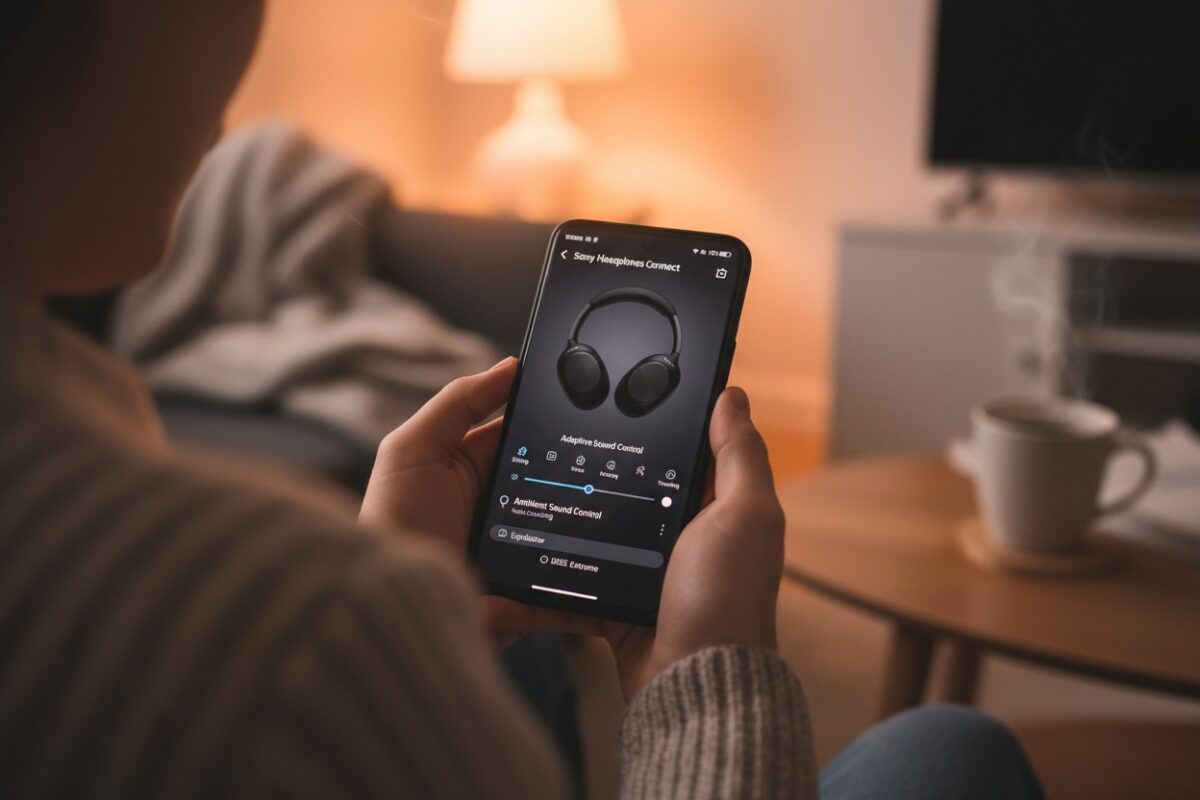
Key Entity Relationship: Your Sony headphones (entity) support various audio codecs (entity). The source device (entity—e.g., Samsung Galaxy S24) determines which codec is used. The Sony Headphones Connect app (entity) allows you to prioritize between “Sound Quality” (favoring LDAC) or “Stable Connection.”
Pre-Pairing Checklist: The Non-Negotiables
- Adequate Charge: A battery level below 10% can cause pairing failures. Use the provided USB-C cable for a reliable charge.
- Device Bluetooth Enabled: Navigate to Settings > Bluetooth on your device. Toggle it on.
- Proximity & Environment: Initial pairing requires close proximity (within 1 meter/3 feet). Reduce interference by moving away from crowded Wi-Fi 6 routers and other active Bluetooth transmitters.
- Clear Previous Pairings (If Needed): If the headphones were previously paired to another device, ensure that device’s Bluetooth is off to prevent it from automatically reconnecting and hijacking the pairing process.
Chapter 2: The Universal Pairing Protocol for All Sony Headphones
This core procedure is applicable to the vast majority of Sony’s Bluetooth lineup, from the flagship WH-1000XM5 to the entry-level CH-720N.
Step 1: Initiate Pairing Mode on Your Headphones.
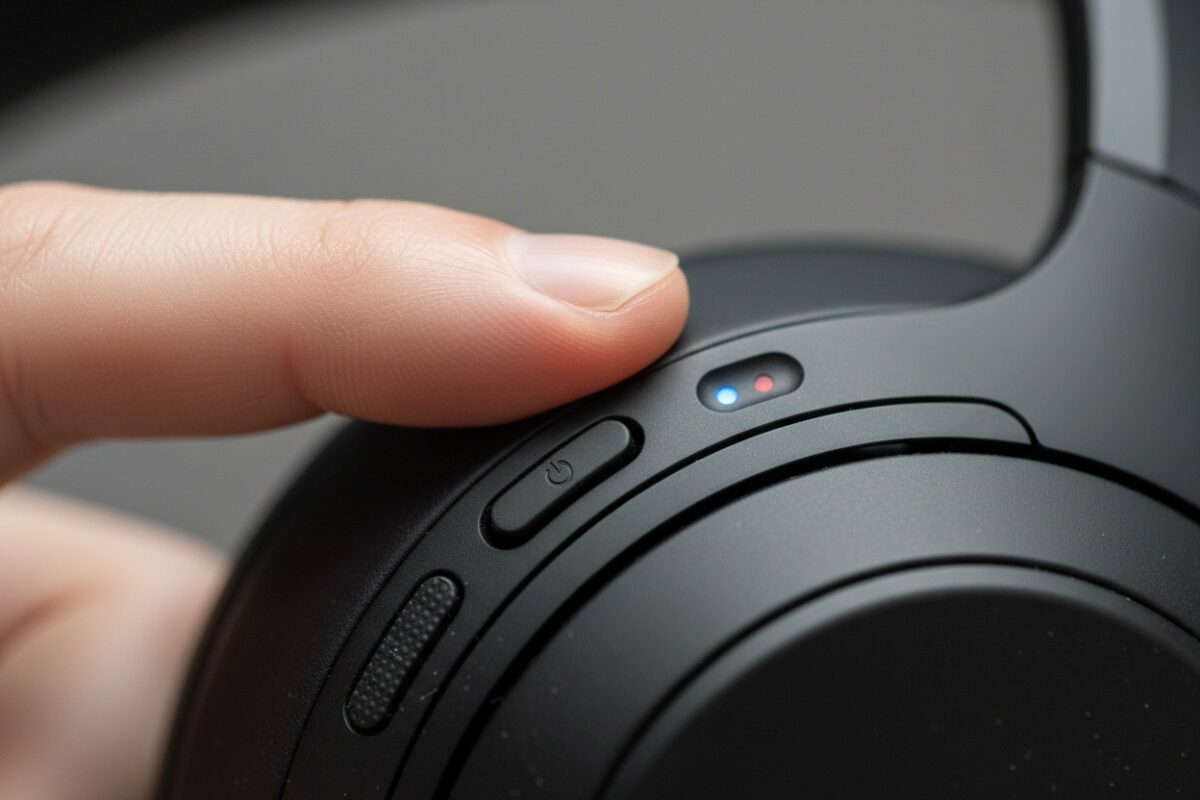
- Over-Ear & On-Ear Models (WH & CH Series): Power on the headphones. Then, press and hold the power button for approximately 7 seconds. Release the button when you hear the voice prompt “Bluetooth pairing” and see the status indicator flash alternating blue and red.
- True Wireless Earbuds (WF Series): Place the earbuds in their charging case. Press and hold the button on the case for about 5-7 seconds until the case’s indicator light flashes. For models without a case button (e.g., WF-C700N), simply removing both earbuds from the case often automatically initiates pairing mode.
Step 2: Access Your Device’s Bluetooth Menu. This is where regional terminology for U.S. English is consistent:
- iOS/iPadOS: Open the Settings app, tap Bluetooth.
- Android: Open Settings, select Connections or Connected devices, then Bluetooth.
- Windows 11/10: Click the Action Center in the taskbar, right-click Bluetooth, and select “Go to Settings,” or navigate via Settings > Bluetooth & devices.
- macOS: Click the Apple menu > System Settings, then click Bluetooth.
Step 3: Select and Confirm. In your device’s “Available Devices” list, locate the exact model name of your headphones (e.g., “LE_WH-1000XM5” or “WF-1000XM4”). Tap or click on it. A confirmation dialog may appear; accept it. You will hear an audible “Bluetooth connected” confirmation in your headphones.
Chapter 3: Device-Specific Pairing & Optimization
How to Pair Sony Headphones to iPhone & iPad (iOS/iPadOS)
The process follows the universal steps, but the Apple ecosystem offers unique integrations. With newer headphones and devices running iOS 14 or later, you may experience a Fast Pair-like pop-up for quicker pairing. For post-pairing optimization:
- Audio Quality: Go to Settings > Accessibility > Audio/Visual > Headphone Accommodations. Here, you can fine-tune the audio profile, though for deep EQ customization, the Sony app is superior.
- Spatial Audio: For supported models, you can enable Dolby Atmos and Spatial Audio with head tracking in Control Center by long-pressing the volume slider.
How to Pair Sony Headphones with Android Devices
Android devices, especially those from Google Pixel and Samsung Galaxy series, may offer Google Fast Pair. This provides a seamless pop-up notification for quick pairing. Critical for Android users:
- Enable LDAC: To unlock the best audio quality from Sony headphones, you must enable the LDAC codec. This is often hidden in Developer Options (enable by tapping “Build Number” 7 times in About Phone). Alternatively, the Sony Headphones Connect app provides a toggle in the Sound settings.
Pairing with Windows 10 & 11 PCs
On Windows, after navigating to Settings > Bluetooth & devices > Add device, select your headphones. For managing audio streams:
- Use the Volume Mixer in the system tray for per-app audio control.
- In Settings > System > Sound, you can set your Sony headphones as the default Output device for system sounds and communications.
Pairing with macOS, Apple TV, and Gaming Consoles
- macOS: Pairing via System Settings is straightforward. For switching between multiple Apple devices logged into the same iCloud account, the process is more seamless.
- Apple TV: Navigate to Settings > Remotes and Devices > Bluetooth.
- Gaming Consoles (PlayStation, Xbox, Nintendo Switch): Note that Sony PlayStation 5 does not support Bluetooth audio for gaming (only for the media remote). You must use a USB Bluetooth transmitter or the headphones’ included 3.5mm audio cable for direct console connection. The Nintendo Switch supports Bluetooth audio natively in its system settings.
Chapter 4: Model Deep Dive: How to Pair Sony Headphones WH-1000XM4 & Leveraging Multipoint
The WH-1000XM4 remains a benchmark. Its pairing process is standard, but its Bluetooth Multipoint feature is a game-changer.
Precise WH-1000XM4 Pairing:
- Slide the power switch to the right to power on.
- Immediately press and hold the power button for ~7 seconds until the “Bluetooth pairing” prompt.
- Select “WH-1000XM4” on your device.
Activating Multipoint Connection (Connecting to Two Devices Simultaneously): This feature allows you to be connected to, for example, your Windows laptop and your iPhone at the same time, automatically switching audio based on which device plays media.
- Pair Individually: First, pair your WH-1000XM4 with Device A (e.g., laptop) using the standard method. Then, put the headphones back in pairing mode and pair with Device B (e.g., smartphone).
- Enable in App: Open the Sony Headphones Connect app. Navigate to System > Connect to 2 Devices Simultaneously and toggle it on.
- Manage: The app will show both connected devices. Audio will automatically switch between them. You can manually switch by pausing audio on the active device and playing it on the other.
Chapter 5: Command Central – The Sony Headphones Connect App
The Sony Headphones Connect app (available on the Apple App Store and Google Play Store) is not optional; it’s the control hub for your headphones’ advanced entities and features.
- 360 Reality Audio Setup: This immersive audio format requires a scan of your ears through the app for personalized optimization.
- Adaptive Sound Control: Uses your location and activity (stationary, walking, traveling) to automatically adjust Ambient Sound and Noise Cancellation levels.
- Firmware Updates: Critical for resolving bugs, improving Bluetooth stability, and adding new features. Regular updates are a hallmark of Sony’s support.
- Device Management: View and delete the 8-device paired memory of your headphones, freeing space for new connections.
Chapter 6: Advanced Troubleshooting & Problem Resolution
When standard pairing fails, this systematic approach resolves 99% of issues.
- Headphones Not Discoverable: Ensure you’re in pairing mode (flashing blue/red light). Perform a full factory reset (see FAQ). Charge for 30 minutes.
- Persistent Connection Drops or Static: This is often wireless interference. Wi-Fi routers (especially on the crowded 2.4GHz band), microwave ovens, and USB 3.0 ports can cause this. Increase distance, or change your router’s channel. In the Sony app, switch Bluetooth Connection Quality to “Stable Connection.”
- Audio Lag or Latency in Videos/Gaming: This is a codec and processing delay. On Android, try switching from LDAC to a lower-latency codec like aptX Adaptive if supported. On Windows, ensure your headphones are set as both the Playback and Recording device in Sound settings for microphone use.
- One Earbud Not Working (WF Series): Place both earbuds in the case, ensure they are charging, then remove them simultaneously. If unresolved, reset the earbuds via the case button.
Comprehensive FAQ: Addressing “People Also Ask” Queries
How do I factory reset my specific Sony headphones to fix severe issues?
WH-1000XM4/XM5: Power OFF. Press and hold the power button and the custom button (bottom of left earcup) simultaneously for about 7 seconds until the indicator flashes 4 times in blue.
WF-1000XM4 Earbuds: Place earbuds in the case, leave the lid open. Press and hold the case button for at least 15 seconds until the indicator light on the case changes from flashing to solid, then off.
General Rule: Consult Sony’s official support page for your exact model for the authoritative reset procedure.
Can I pair Sony headphones with non-Bluetooth devices like in-flight entertainment?
Why does my audio sound tinny or lack bass after pairing?
How many devices can my Sony headphones remember?
How do I update the firmware on my Sony headphones?
Your Gateway to Uninterrupted, Premium Audio
Mastering the pairing process for your Sony headphones is the essential gateway to the immersive, high-fidelity audio experience they are engineered to deliver. This guide has equipped you with more than just steps; it has provided the contextual knowledge—from Bluetooth codecs and device-specific optimizations to advanced Multipoint management and professional troubleshooting—necessary to navigate any connectivity scenario. By leveraging the powerful Sony Headphones Connect app and maintaining updated firmware, you ensure your investment performs optimally across your entire digital ecosystem, be it Apple, Android, Windows, or beyond. Remember, a stable, well-configured connection is the invisible foundation upon which crystal-clear calls, thunderous bass, and serene noise cancellation are built. Now, pair with confidence and listen without limits.
🎧 Love Sony’s Features? Discover Voistek’s Professional-Grade Alternative
You’ve just mastered Sony pairing. Now experience what audio professionals are switching to.
Voistek delivers premium features without the premium price:
✓ Advanced ANC technology – rivals Sony’s noise cancellation performance
✓ True Multipoint Bluetooth 5.3 – seamless connection to 3+ devices simultaneously
✓ LDAC + aptX HD support – Hi-Res Audio on any device
✓ Instant pairing – no complicated button sequences required
✓ 50+ hour battery life – outlasts leading competitors
✓ Companion app with full EQ control and firmware updates
Universal compatibility: iPhone • Android • Windows • Mac • Gaming consoles
[Explore Voistek Premium Headphones →] | Free shipping + 90-day trial
Trusted by 75,000+ audio enthusiasts. Rated 4.7/5 stars. 2-year warranty included.