
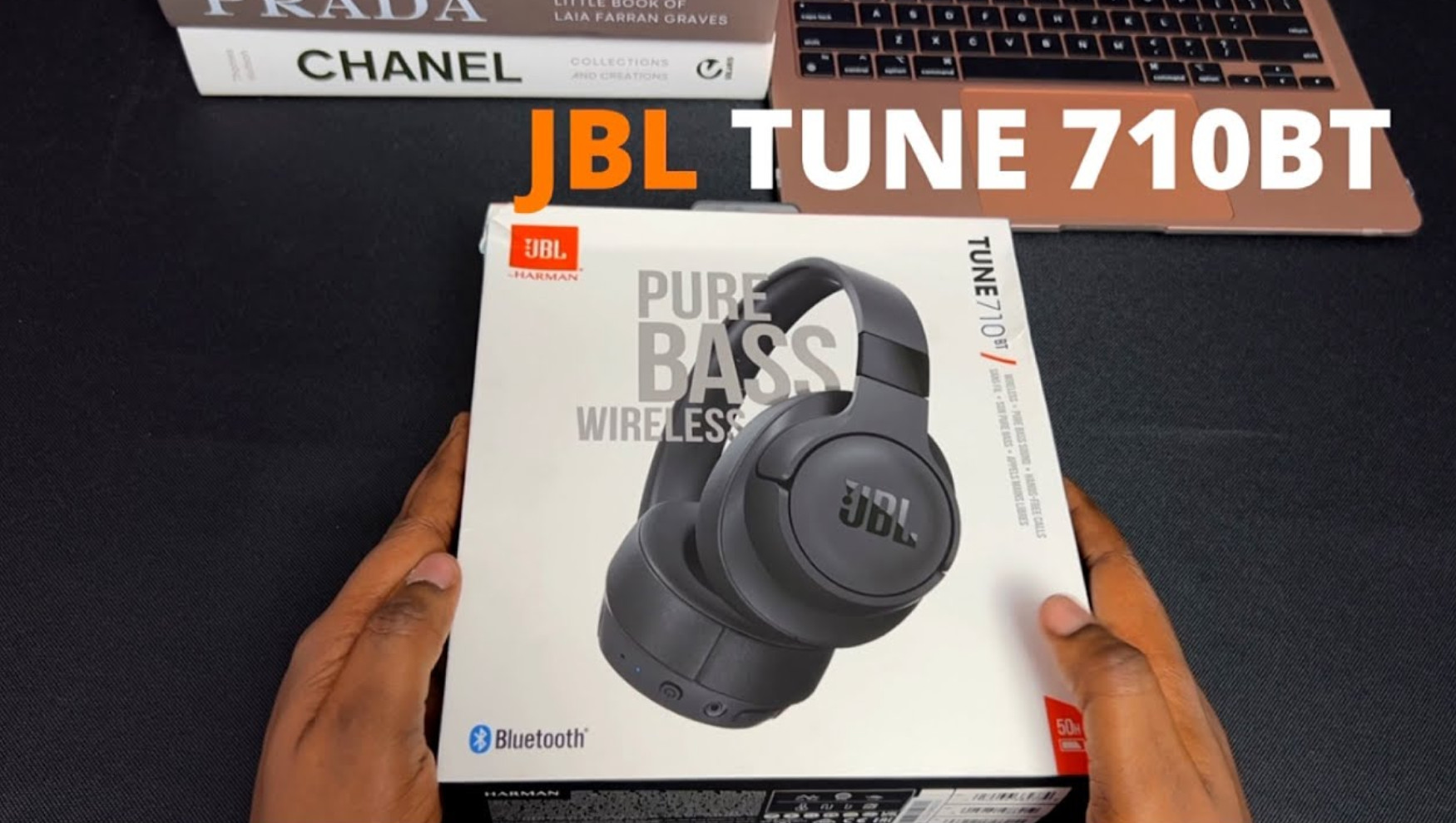

JBL Tune 710BT sound problems usually come down to one of four things: the audio source, Bluetooth connection, device settings, or a physical issue with the headphones or cable. Start by playing the same track on another device. Then work through the seven checks below, moving from reversible settings changes to a factory reset. The Tune 710BT is an over-ear Bluetooth headset with a detachable audio cable, not an earbud model with removable ear tips.
First, identify the sound problem
- Muffled or weak bass: check the source’s EQ and whether the ear cushions are sitting evenly around your ears.
- Crackling or dropouts: test closer to the source and remove other Bluetooth connections.
- Quiet playback: check both source and headphone volume, then verify the output device.
- One side silent: check left/right balance, then compare Bluetooth and wired playback.
- Poor sound during calls: check whether the computer has switched from music playback to a hands-free call profile.
1. Check the audio source and volume
Play a familiar recording from a second app or device. If only one app sounds wrong, troubleshoot that app before changing the headphones. Set the source’s equalizer to Flat or Off temporarily and disable optional sound effects. Check its media volume and the volume buttons on the right earcup. On a computer, also confirm that JBL TUNE710BT is the selected output device.
If voices sound thin or the bass disappears only in one recording, try a different track. A low-quality or distorted source will not improve just because the headphones are re-paired.
2. Reconnect the JBL Tune 710BT over Bluetooth
- In your phone or computer’s Bluetooth settings, disconnect the headphones. If repeated reconnection has failed, select Forget or Remove device.
- Turn off the headphones. To enter pairing mode again, press and hold the power button for about 5 seconds, as shown in JBL’s quick start guide.
- Select JBL TUNE710BT in the available devices list and play audio.
If the connection fails on one computer but works on your phone, the problem is more likely in that computer’s Bluetooth adapter, settings, or audio software.
3. Reduce interference and check multipoint switching
For crackling or brief cutouts, move closer to the connected phone or computer and test away from crowded wireless equipment. Temporarily turn off Bluetooth on a second paired device to see whether automatic switching is interrupting playback.
The Tune 710BT supports multipoint connection with up to two devices. That lets it switch between sources, such as a tablet and phone; it does not mean it mixes two audio streams. If one device takes over, stop playback or disconnect that device and retry the intended source.

4. Check the computer’s call-audio mode
If music sounds normal until you open a calling app, close the call and test again. Some Bluetooth computers switch to a hands-free audio profile when an app activates the headset microphone. That profile prioritizes two-way communication over music fidelity, so a change in sound during calls does not necessarily indicate a damaged driver.
In your operating system’s sound settings, check both Output and Input. If you need high-quality music playback rather than the headset microphone, choose the stereo listening output where your device offers that option and use a different microphone if necessary. Names and menu locations vary by operating system.
5. Fix muffled, quiet, or one-sided audio
Adjust the headband so the padded earcups sit evenly over both ears. Glasses, hair, or uneven cushions can change the seal and the amount of bass you hear. Gently wipe the outside of the earcups and cushions with a soft, dry cloth; do not pour liquid into the earcups. The Tune 710BT does not have removable silicone ear tips.
If sound is coming from only one side, check the left/right audio balance in your phone or computer’s accessibility or sound settings. Return it to the center for a test. Try mono and stereo recordings to rule out the recording itself, then move to the wired test below.
6. Test the included audio cable
JBL includes a detachable audio cable for wired listening with the Tune 710BT. Connect it firmly at both ends and play the same track from a source with a compatible audio jack. If the Bluetooth problem disappears in wired mode, focus on pairing, interference, or Bluetooth audio settings. If the fault remains in both modes, inspect the cable and audio source before concluding the headphones need repair.
A damaged cable or loose connector can cause intermittent or one-sided wired sound. Test with a known-good compatible replacement cable if available; avoid bending the plug to force a connection.
7. Factory-reset the JBL Tune 710BT
Use a reset only after checking the source, pairing, and cable. It erases the headphones’ saved Bluetooth pairing data.
- Disconnect the headphones from the Bluetooth device.
- Press and hold Volume + and Volume − together for more than 5 seconds, following JBL’s Tune-series reset instructions. The unit will power off and reset.
- Remove the previous JBL pairing from your source device if it remains listed, then pair again using the instructions in step 2.
See JBL’s official Tune-series factory-reset instructions for the model-specific procedure.
Can the JBL Headphones app update the Tune 710BT?
Do not rely on an app-based firmware or EQ walkthrough for this model. The Tune 710BT is not on JBL’s published Headphones app support list, and JBL’s 710BT quick start guide does not give an app-based update procedure. Adjust EQ in your phone, computer, or playback app instead. If you suspect a firmware-specific issue, ask JBL support for instructions that explicitly identify the Tune 710BT.
JBL Tune 710BT specifications relevant to troubleshooting
JBL lists 40 mm dynamic drivers, Bluetooth 5.0, up to 50 hours of Bluetooth music playback, charging in under 2 hours from empty, and a detachable audio cable. Those are manufacturer specifications, not a diagnosis of a particular unit. Battery life can vary with use. The model does not advertise active noise cancellation; its ear cushions provide passive isolation.
For pairing, controls, wired listening, and LED behavior, use the JBL Tune 710BT quick start guide (PDF).
If repair or replacement makes more sense
If the same distortion or missing channel persists across multiple sources and both Bluetooth and wired modes, contact JBL Support with the model number and the checks you’ve already tried. For out-of-warranty units, compare a repair quote with the cost of a replacement. The models below appeared in the original article; this is a feature comparison rather than a listening-test ranking.
| Feature | JBL Tune 710BT | Sony WH-CH520 | Soundcore Life Q30 |
|---|---|---|---|
| Price (Around) | Check current retailer price | Check current retailer price | Check current retailer price |
| Sound Style | JBL Pure Bass tuning | EQ controls in Sony’s app | Bass-focused tuning and app EQ |
| Top Feature 1 | Up to 50 hours of playback | Up to 50 hours of playback | Active noise cancellation |
| Top Feature 2 | Multipoint and detachable audio cable | Multipoint and on-ear design | Multipoint connection and customizable app EQ |
| Good If You Want… | Wired backup and over-ear Bluetooth listening | On-ear fit and app-based sound adjustment | ANC and adjustable EQ |
Comparison sources: JBL specifications (PDF), Sony WH-CH520 product details, and Soundcore Life Q30 product details. Battery figures are manufacturer-advertised upper limits under their respective conditions; do not compare them as standardized independent tests.
Frequently asked questions
Why does my Tune 710BT sound muffled?
Start with the recording, source EQ, and the seal around your ears. If the problem occurs only during a computer call, check whether Bluetooth hands-free mode is active.
How do I put the JBL Tune 710BT into pairing mode again?
Turn the headphones off, then hold the power button for about five seconds. Select JBL TUNE710BT in your device’s Bluetooth settings. Forget the old pairing first if reconnection keeps failing.
Does the JBL Tune 710BT have noise cancellation?
JBL does not list active noise cancellation for the Tune 710BT. Its over-ear cushions provide some passive sound isolation, which depends on how well they fit.
Bottom line: Start with the source and Bluetooth connection, then check audio mode, fit, balance, and the included cable. Reset only after those checks. A problem that persists across devices and connection modes is a stronger reason to contact JBL support.